Git introduction
Git is a version control system.
Git helps you keep track of code changes.
Git is used to collaborate on code.
What does Git do?
- Manage projects with Repositories
- Clone a project to work on a local copy
- Control and track changes with Staging and Committing
- Branch and Merge to allow for work on different parts and versions of a project
- Pull the latest version of the project to a local copy
- Push local updates to the main project
Github
- Git is not the same as GitHub.
- GitHub makes tools that use Git.
- GitHub is the largest host of source code in the world, and has been owned by Microsoft since 2018.
- In this tutorial, we will focus on using Git with GitHub.
First steps
To start using Git, we are first going to open up our Command shell.
For Windows, you can use Git bash, which comes included in Git for Windows. For Mac and Linux you can use the built-in terminal.
The first thing we need to do, is to check if Git is properly installed:
$ git --version
Configure git
Now let Git know who you are. This is important for version control systems, as each Git commit uses this information
git config --global user.name "<TO_COMPLETE>"
git config --global user.email "<TO_COMPLETE>"
Git init
Now, let’s create a new folder for our project:
$ mkdir git_tuto $ cd git_tuto
Let’s initialize Git on that folder:
$ git init
File creation
You just created your first local Git repo. But it is empty.
So let’s add some files, or create a new file using your favourite text editor. Then save or move it to the folder you just created.
$ echo "this is a random file" > a.txt
It should output something like:
$ git status
On branch main

No commits yet

Untracked files:
  (use "git add <file>..." to include in what will be committed)
        a.txt

nothing added to commit but untracked files present (use "git add" to track)
Now Git is aware of the file, but has not added it to our repository!
Files in your Git repository folder can be in one of 2 states:
- Tracked: files that Git knows about and are added to the repository
- Untracked: files that are in your working directory, but not added to the repository
When you first add files to an empty repository, they are all untracked.
To get Git to track them, you need to stage them, or add them to the staging environment.
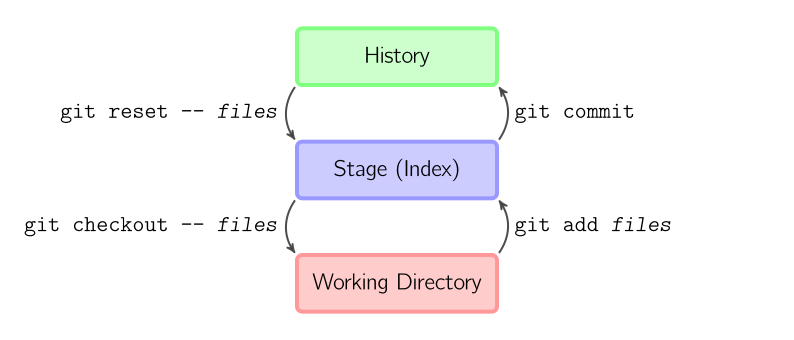
To move a file from staging area to working directory, you can use:
git restore --stage <file>To move a file from history to staging area, you can use:
git reset --hard HEAD^1Git stage
As you are working, you may be adding, editing and removing files. But whenever you hit a milestone or finish a part of the work, you should add the files to a Staging Environment.
Staged files are files that are ready to be committed to the repository you are working on.
For now, we are done working with a.txt. So we can add it to the Staging Environment:
$ git add a.txtWe can check the state with git status:
$ git status

On branch main
No commits yet

Changes to be committed:
  (use "git rm --cached <file>..." to unstage)
        new file:   a.txt
Git commit
Since we have finished our work, we are ready move from stage to commit for our repo.
Adding commits keep track of our progress and changes as we work. Git considers each commit change point or “save point”. It is a point in the project you can go back to if you find a bug, or want to make a change.
When we commit, we should always include a message.
By adding clear messages to each commit, it is easy for yourself (and others) to see what has changed and when.
$ git commit -m 'add(a): first file'
[main (root-commit) 6ca36b6] add(a): first file
 1 file changed, 1 insertion(+)
 create mode 100644 a.txt
The commit command performs a commit, and the -m “message” adds a message.
Git log
To view the history of commits for a repository, you can use the log command:
$ git log
commit 6ca36b608e743f6156ff5f246e26486cf4748933 (HEAD -> main)
Author: clementbernardd <clementbernardd@gmail.com>
Date:   Tue Sep 5 17:59:28 2023 +0200

    add(a): first file